If you have ever worked in a school, you know that student information is almost never sitting neatly in one place. Attendance lives in one spreadsheet, test scores in another, and homeroom rosters somewhere else entirely.
The traditional way to handle this is a mess of manual copy-pasting, endless tab-swapping, and high potential for human error.
The good news? You don’t need to be a database administrator or write complex software scripts to fix this. By leveraging core spreadsheet functions, you can build a centralized dashboard that pulls data automatically from separate spreadsheets.
The Relational Database Concept in Spreadsheets
Before writing any formulas, it helps to understand how separate datasets talk to each other.
In software engineering, a relational database keeps distinct types of information in separate tables to avoid duplication. The secret glue holding everything together is a unique identifier—a single piece of data shared across all tables that uniquely identifies a record.
In our school setup, that unique identifier is the Student ID:
- Student Information Sheet (
studInfotab): Maps Student ID to name, email, gender, and grade. - Class Information Sheet (
classInfotab): Maps Student ID to class name, attendance rate, period, and test scores. - Homeroom Sheet (
homeRoomtab): Maps Student ID to their assigned homeroom teacher.
By using the Student ID as our primary lookup key, we can keep datasets separated and managed by their respective owners while bringing them together into a central view.
Proof of Concept Note: This walkthrough is a demonstration and proof of concept for pulling relational data into a single lookup dashboard. It assumes a simplified model where each student appears once per sheet. In a full production setup, you would account for students having multiple rows (such as historical daily attendance records or multiple class periods) using functions like
FILTERorQUERY.
Step 1: Bringing Remote Data Together with IMPORTRANGE
To connect separate spreadsheets in Google Sheets, we use the IMPORTRANGE function.
What is IMPORTRANGE?
IMPORTRANGE is a native Google Sheets function designed to fetch data from an entirely different Google Sheets workbook across your Drive.
Syntax
=IMPORTRANGE("spreadsheet_url", "range_string")
spreadsheet_url: The full URL (or the long alphanumeric ID string) of the source Google Sheet, enclosed in quotation marks.range_string: The tab name and cell range you want to pull, written as"TabName!Range".
How We Use It in the Master Sheet
Inside our central workbook (All Data Together), we set up dedicated tabs (studInfo, classInfo, and homeRoom) to act as mirror receivers.
For example, on the studInfo tab of the main sheet, cell A1 contains:
=IMPORTRANGE("https://docs.google.com/spreadsheets/d/1LzlufIwzvv6Yro-e90IGYDnIrb8fAFSP4LLLYxfZ-00/edit?gid=0#gid=0", "studInfo!A1:F")
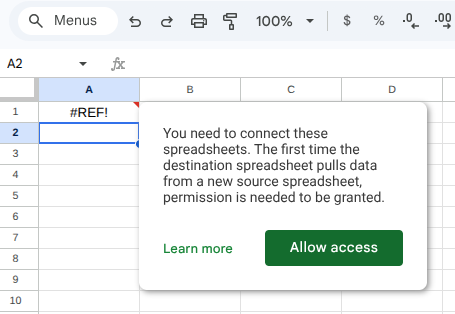
When you enter this formula for the first time, Sheets will display a #REF! error with a prompt asking you to “Allow access.” Once you click that button, Google establishes a secure link between the two files, and the data automatically populates and stays in sync whenever the source sheet changes.
Step 2: Building the “Student Search” Dashboard
Once the remote data is mirrored into our central workbook, we can create a clean search tab.

When an administrator or teacher enters a student ID into cell C2, row 4 immediately fetches and renders all matching records across our imported tabs.
Here is how each lookup formula works:
Fetching Student Demographics (XLOOKUP + CHOOSECOLS)
In cell A4, we enter:
=XLOOKUP(C2, studInfo!A:A, CHOOSECOLS(studInfo!A:F, 3, 2, 6))
What is XLOOKUP?
XLOOKUP searches a specific column or row for a value and returns corresponding items from another column or row.
What is CHOOSECOLS?
Normally, XLOOKUP returns adjacent columns in the order they exist on the source sheet. However, if you want to rearrange or cherry-pick specific columns, CHOOSECOLS lets you specify exactly which column numbers to display and in what order.
Formula Breakdown:
C2: The search key (Student ID entered by the user).studInfo!A:A: The lookup array (where Sheets searches for the ID).CHOOSECOLS(studInfo!A:F, 3, 2, 6): The return array. Instead of returning columns A through F in order,CHOOSECOLSextracts:- Column 3:
last_name - Column 2:
first_name - Column 6:
grade
- Column 3:
This outputs Last Name, First Name, and Grade neatly in cells A4:C4.
Fetching Academic & Attendance Information (XLOOKUP)
In cell D4, we enter:
=XLOOKUP($C$2, classInfo!A1:A, classInfo!B1:F, "No match")
Formula Breakdown:
$C$2: Searches for the Student ID using absolute references.classInfo!A1:A: Searches the ID column in the imported class sheet.classInfo!B1:F: Returns all contiguous columns across that matching row (className,attendance,assessment1,assessment2,period)."No match": An optional fallback argument inXLOOKUPthat displays a friendly text message if the ID isn’t found, preventing standard#N/Aerrors.
Fetching Homeroom Assignment (XLOOKUP)
In cell I4, we enter:
=XLOOKUP($C$2, homeRoom!B1:B, homeRoom!A1:A, "No homeroom listed")
Formula Breakdown:
$C$2: Searches for the Student ID.homeRoom!B1:B: Searches column B of the homeroom sheet (where IDs are stored).homeRoom!A1:A: Returns column A (the homeroom teacher name)."No homeroom listed": Displays if the ID lacks a matching record.
Workflow Pro-Tips: Tab Organization & Named Ranges
While this demo uses individual tabs (studInfo, classInfo, homeRoom) to clearly illustrate how each data source functions, that isn’t always necessary in daily practice.
In my actual working environments:
- Single Receiver Tab: Rather than maintaining multiple separate receiver tabs, I often combine incoming
IMPORTRANGEformulas onto a single tab calleddata. This keeps the tab bar clean and makes sheet maintenance easier. - Named Ranges: I frequently combine these formulas with Named Ranges instead of raw cell references like
classInfo!A1:A. Using named ranges likeStudentIDsorClassDatamakes formulas cleaner, easier to write, and far simpler to troubleshoot.
Keep an eye out for a future article where we will dive into how Named Ranges dramatically boost the readability and ease of use in complex spreadsheet setups!
Try It Yourself: Get the Free Demo Template
Want to get hands-on with this exact setup? You can download the complete working template directly from our store for free!
Get the Free IMPORTRANGE Student Search Demo Spreadsheet
What’s Included in the Free Download:
- Fully Functioning Master Search Dashboard: Pre-configured with all
XLOOKUP,CHOOSECOLS, andIMPORTRANGEformulas ready to test. - Built-in Source Links: Inside the demo sheet, you will find direct “force copy” links for each of the three underlying data files (Student Information, Class Information, and Homeroom).
- Self-Contained Sandbox: Click the force-copy links to generate your own private copies of the data sources, update the spreadsheet URLs in the demo, and watch the dashboard update live in your own Drive account.
Key Takeaways
- Relational Structure: You don’t need a single massive spreadsheet; unique keys like a Student ID allow separate sheets to work in unison.
IMPORTRANGE: Safely bridges data between individual Google Sheets workbooks without manual exporting or copy-pasting.XLOOKUP: The modern, flexible search function that simplifies looking up data across rows and columns.CHOOSECOLS: Provides complete control over which columns to return and what order to display them in.
Now it’s your turn to make a difference: go out there and light up a mind!