If you have ever tried to build dynamic math activities, geometry trackers, or auto-grading templates inside Google Sheets, you have likely run into “formula fatigue.” Standard spreadsheet formulas are incredible, but as soon as you try to calculate something like the slope between two points—or handle edge cases like vertical lines—your formulas can quickly turn into a tangled web of nested IF, ISBLANK, and ERROR statements.
What if you could replace those complex formulas with a clean, readable function built specifically for your math classroom?
Enter Google Apps Script Custom Functions. By creating custom script functions, you can teach Google Sheets new mathematical tricks, make formulas easier for students to read, and open up exciting possibilities for computational thinking in math class.
What Is Slope? (And Why It Doesn’t Matter Right Now)
In algebra, slope measures the steepness and direction of a line connecting two points on a coordinate plane, defined by the formula:
Note for non-math teachers: If math wasn’t your favorite subject, don’t worry! You do not need to memorize or fully grasp the mathematical concept of slope to follow along. Today, we are focusing on the process of turning a step-by-step rule into a reusable spreadsheet function. The logic you learn here applies to any rule, formula, or grading scale you want to automate!
Step-by-Step: Writing Your First Custom Function
Let’s turn the slope formula into a clean function called =SLOPE_BETWEEN(x1, y1, x2, y2).
Step 1: Open the Apps Script Editor
- Open a Google Sheet.
- Click on Extensions > Apps Script in the top menu.
- Delete any code in the editor and rename the project to Math Custom Functions.
Step 2: Write the Code with JSDoc Comments
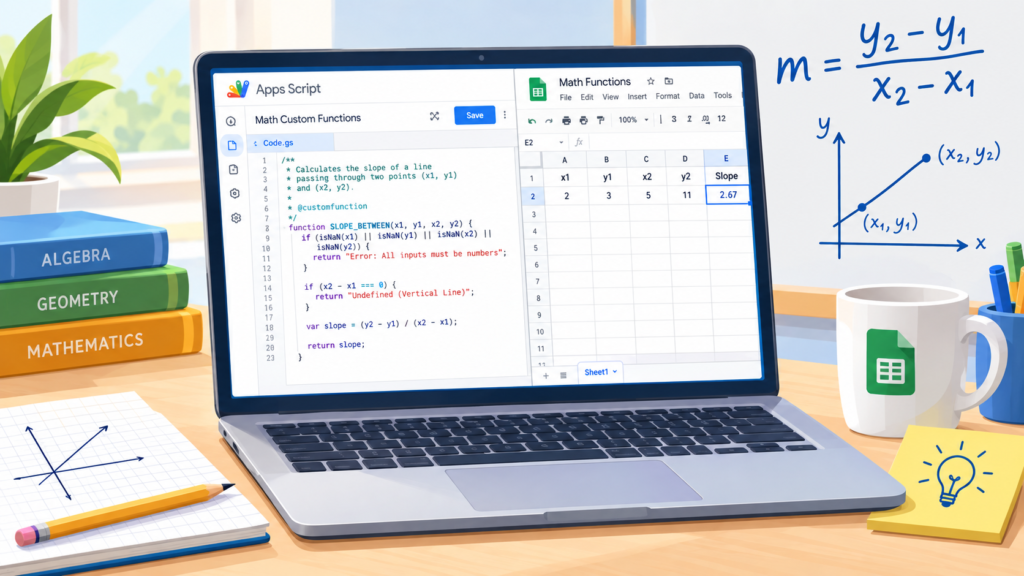
Copy and paste the code below into the editor. Pay close attention to the comments at the top—the @customfunction tag tells Google Sheets to show auto-complete suggestions when typing the formula!
/**
 * Calculates the slope of a line passing through two points (x1, y1) and (x2, y2).
 *
 * @param {number} x1 The x-coordinate of the first point.
 * @param {number} y1 The y-coordinate of the first point.
 * @param {number} x2 The x-coordinate of the second point.
 * @param {number} y2 The y-coordinate of the second point.
 * @return The slope of the line, or "Undefined" for vertical lines.
 * @customfunction
 */
function SLOPE_BETWEEN(x1, y1, x2, y2) {
  // Input validation: ensure all entries are numbers
  if (isNaN(x1) || isNaN(y1) || isNaN(x2) || isNaN(y2)) {
    return "Error: All inputs must be numbers";
  }

  // Handle vertical lines (division by zero)
  if (x2 - x1 === 0) {
    return "Undefined (Vertical Line)";
  }

  // Calculate slope m = (y2 - y1) / (x2 - x1)
  var slope = (y2 - y1) / (x2 - x1);

  return slope;
}
Step 3: Save and Test in Google Sheets
- Click the Save icon (floppy disk) in the Apps Script editor.
- Return to your Google Sheet tab.
- In cell
A1throughD1, enter coordinates:2,3,5,11. - In cell
E1, type:=SLOPE_BETWEEN(A1, B1, C1, D1)and press Enter.
You should see 2.67 (or 8/3)—calculated instantly by your custom script!
Beyond Slope: Automating Classroom Feedback
Once students (and teachers) learn that functions can process inputs and return customized results, you can branch out into feedback functions. Imagine a custom formula that checks student work automatically:
/**
 * Checks a student's answer against an expected answer within a given tolerance.
 *
 * @param {number} studentAnswer The value entered by the student.
 * @param {number} correctAnswer The actual expected value.
 * @return "Correct!", "Try Again", or "Missing".
 * @customfunction
 */
function CHECK_ANSWER(studentAnswer, correctAnswer) {
  if (studentAnswer === "" || studentAnswer === undefined) {
    return "Waiting for entry...";
  }

  if (Math.abs(studentAnswer - correctAnswer) < 0.01) {
    return "✅ Correct!";
  } else {
    return "❌ Try Again";
  }
}
Custom functions aren’t just a slick technical upgrade—they are a launchpad for transforming how your students experience problem-solving. You don’t need to be a software engineer to reshape your digital classroom; you just need the curiosity to start. By Resolving Everyday spreadsheet headaches with a few simple lines of code, you unlock cleaner tools, turn passive drills into active engineering, and show learners that math and technology are meant to be built, explored, and mastered. Now it’s your turn to make a difference: go out there and light up a mind!